How to claim your business in ChatGPT.
On launch day, November 10, 2026, adding our own company to ChatGPT reached a waitlist, a Coming soon option and a domain record set to expire about half an hour after it appeared. Choose your business type below for your first action and where to stop.
Find your path
Check which ChatGPT account is signed in before you start (why), then search chatgpt.com/business-hub by business name.
If you are listed, whatever your business: claim it (step 2a), then pass the Persona check in step 3. From OpenAI
If you are not listed, open your row:
Shop or office
Customers come to you: shop, restaurant, office, clinic, law firm.
OpenAI says local stores and restaurants can currently claim only an existing U.S. listing. From OpenAI
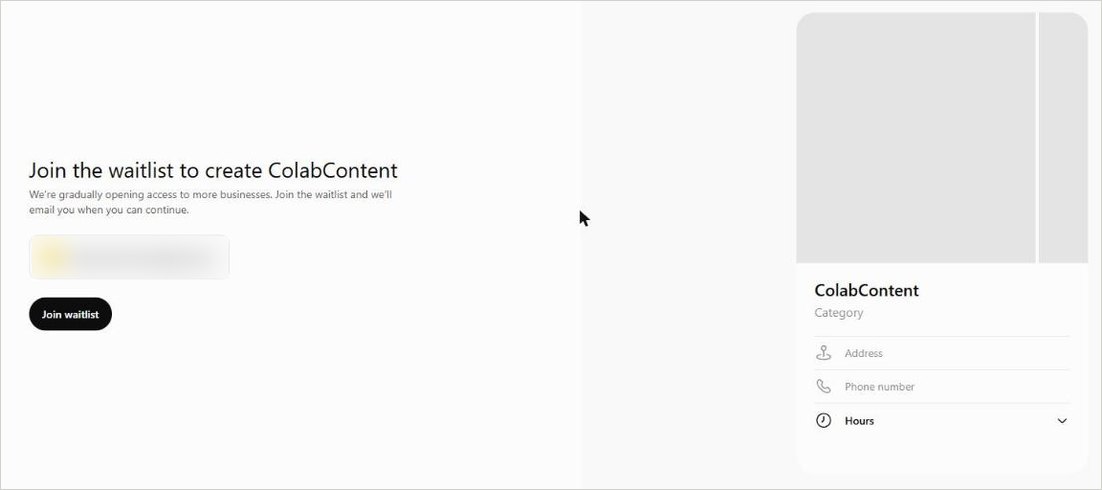
On our account, choosing Create and At a physical location opened a waitlist. If your screen offers it, join and stop when it says You're on the waitlist (step 2b). We have not seen another route if that option is not offered. We saw this
Service or remote business
Online store
Not on Shopify.
If Create is offered, select it, then Through an online store, and have your domain login ready for the TXT record in step 2b. We saw this
Shopify
Connect from your Shopify admin or from Business Hub (Shopify steps). If you are listed, Shopify store may also be offered as a verification method. From OpenAI
Several locations
First, if your brand uses a managed claim process, location profiles stay locked by default: ask your OpenAI account contact about the supported claim path. From OpenAI
Otherwise, treat each brand and each location as its own business: search for it, then claim it if listed (step 2a) or follow the not listed route for its type. Claiming the main brand does not claim its locations, and central management is not available yet. From OpenAI
Licensed professional
Law, medical or financial practice. Follow the row for how your customers reach you. If you later build a Business Agent, it may not give advice that legally requires a professional license. From OpenAI
Before you click anything: the account, eligibility and what publishes
Use the account that should manage the business. When we joined the waitlist, it used the ChatGPT account already signed in on that browser, not the one we would have chosen; that screen offered no account choice. We saw this OpenAI's documented claim flow for an existing listing does include an account confirmation. From OpenAI
Teammates, agencies and workspace accounts
OpenAI says the admin who claims the business can later add teammates or give an agency access, each with their own ChatGPT account; not to forward a personal claim invitation; and that for a business claimed in a ChatGPT workspace, invitees may need to be members of that workspace. From OpenAI
Check you are eligible. You must own the business or be authorized to represent it, and OpenAI says claiming is initially available to eligible businesses with a website; eligibility also depends on location, type and its verification checks. From OpenAI
Know what publishes. If you use Persona to create a new profile, OpenAI's approval publishes it automatically, with no separate publish step, and OpenAI Support cannot unpublish or hide a published profile as part of setup. Only unpublished drafts can be deleted. From OpenAI
Documents and logins to prepare
One way to prove the business is yours: the business phone on the listing, the business email, your domain login or your web person, or your Shopify login. Persona (the ID verification service OpenAI uses) may ask for a government-issued ID, business registration information and proof you can represent the business; the business details you give must match your official records. From OpenAI
Claiming or adding your business, step by step
We took these screenshots on ColabContent's own account on November 10, 2026, and blurred other businesses, our email and the one-time code. We have not tested claiming an existing listing, Persona, insights or agents: our business is not listed and is on the waitlist. Those steps come from OpenAI's help article Setting up your business on ChatGPT (read November 10, 2026), and we will add our own screens when access lets us test them.
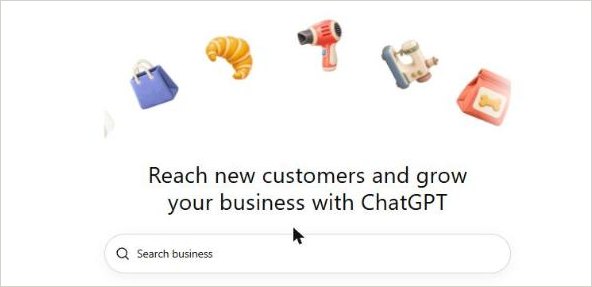
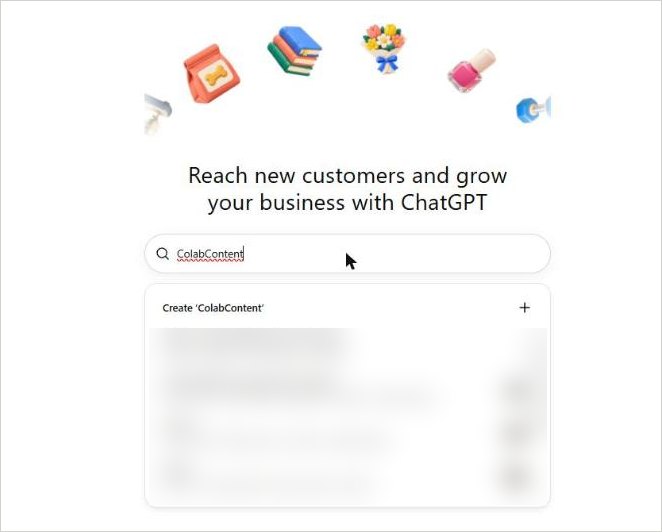
1. Open Business Hub and search We saw this
Go to chatgpt.com/business-hub, or open Business Hub from the ChatGPT sidebar, and search for your business by name. By continuing you accept OpenAI's Businesses in ChatGPT Terms. Searching our street address listed other companies in our building, so search by name.
2a. If you are listed: claim it From OpenAI
- Select the listing that matches your business and confirm the ChatGPT account that will manage it. If OpenAI emailed you a claim invitation, open that personal link and sign in with the address that received it.
- Choose one of the verification methods shown, and open yours below.
Business phone
Select Business phone, pick a text or an automated call, select Get code, and enter the code sent to the number shown.
Business email
Select Business email, then Get code, and enter the code sent to the business address.
Website domain
Select Website domain and add the TXT record shown to your domain's DNS settings, copying the type, the name or host, and the value exactly. If someone else manages your domain, ask them to add it. Then return, select Verify domain, and follow any remaining prompts to finish your claim.
Shopify store
Select Shopify store, then Connect Shopify, review the permissions, sign in to the store you are claiming, and follow the prompts to complete verification.
Then wait for OpenAI's email with its decision or a request for more information. You can select Cancel claim while it is under review.
2b. If you are not listed: create it We saw this
Select Create, then Get started, and answer how customers usually interact with you.
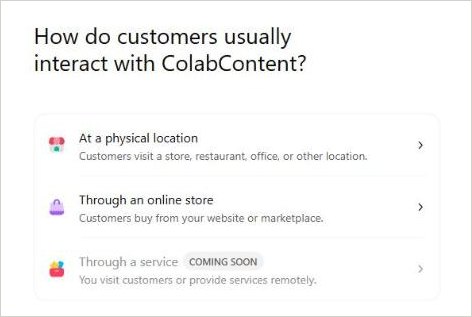
The online store route went furthest on our account:
- Through an online store: our website, then a TXT record (a short line of text that proves you control the domain) to add in our domain provider's DNS settings, the settings that point a web address at a site. Ours had the host openai-business-profile.colabcontent.com and an expiry time about half an hour away, so do the DNS step straight away. We backed out without submitting.
Where this route ends, we cannot yet say. We are not an online store, so we did not submit it. We saw this
We confirmed the new online store route only as far as the TXT record screen. Follow Business Hub's instructions beyond that point. We saw this
Shopify stores From OpenAI
Connect a Shopify store
OpenAI's business page gives three steps:
- Connect your store from your Shopify admin or from Business Hub (OpenAI's Connect Shopify store link).
- Review your business information; product details, prices and availability are shared through Shopify's catalog.
- Preview and publish an agent, if you are eligible.
OpenAI says eligible Shopify products are already in ChatGPT through Shopify Catalog. From OpenAI We did not test the Shopify route.
See the waitlist and domain check screens
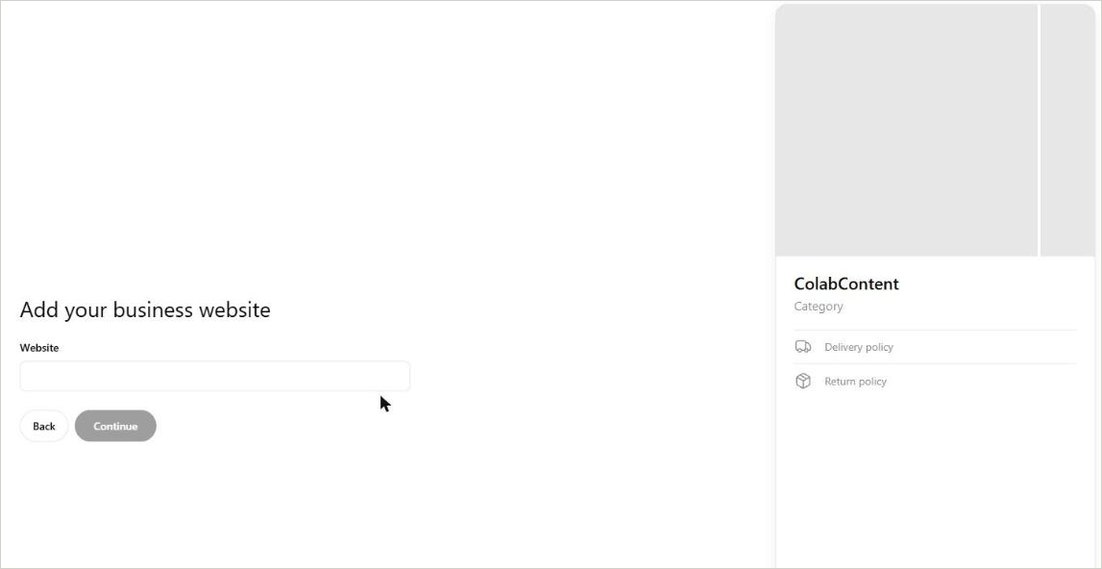
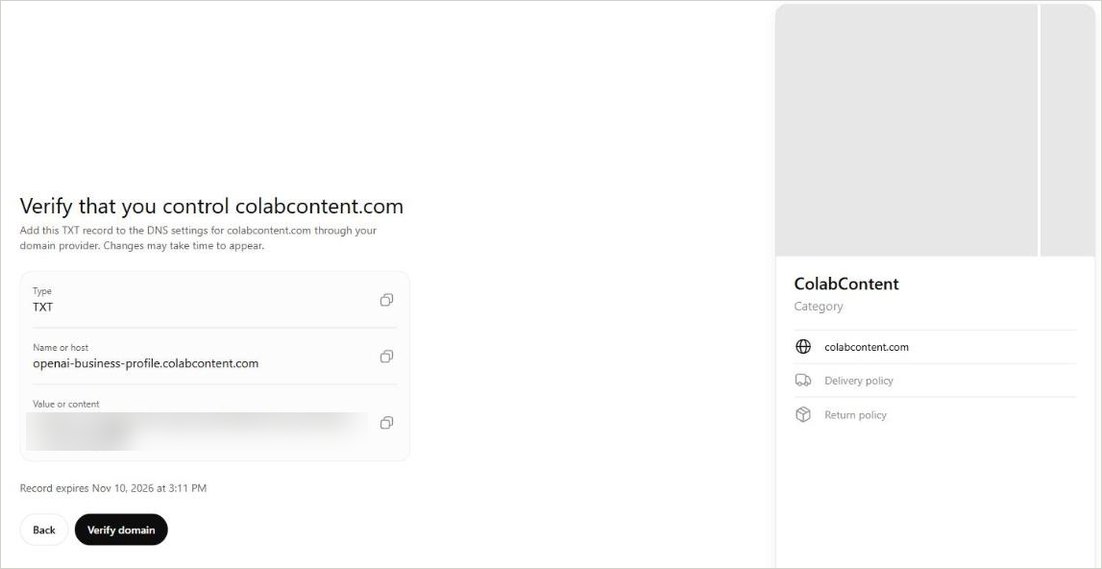
3. Pass Persona From OpenAI
- Submit: after your claim is approved, select Verify with Persona, then Continue to Persona, and follow its instructions.
- Approval: OpenAI reviews the submission and emails its decision. Submitting is not approval.
- Next: approval adds the blue check and opens the tasks after approval.
Doing Persona later
If you verified your claim another way first, open the Business tab, select your profile, find Complete verification with Persona in the overview, and select Verify.
Stuck? What each Business Hub problem means
Open the problem you see. Answers come from OpenAI's help article unless marked. From OpenAI
The listing says Contact support
The listing is locked. Select Contact support to request access.
Someone already claimed your business
Open the profile, select the more options menu (three dots), then Dispute ownership, and verify with Persona that you are authorized to represent the business.
Verify domain fails
Check the type, the name or host, and the value were copied exactly. DNS changes may take time to appear.
The domain record passed its expiry time
Follow the prompts Business Hub shows. We saw the expiry time but did not test what happens after it. We saw this
The claim or Persona check is still pending
Wait for OpenAI's email, and wait for the review to finish before trying again. Review time varies.
Persona failed or expired
Follow the email. If Try again appears, correct the details to match your official records. If you cannot retry, contact OpenAI Support.
Approved by email, but Business Hub still says incomplete
Contact OpenAI Support.
An insight stays blank
A blank metric can mean activity is below the reporting threshold, data is still being collected, or reporting is unavailable. If it stays blank, contact OpenAI Support.
There is no option to create an agent
Check you are on the claimed profile and Persona is approved. Your business may not meet the current agent requirements for location, type or industry.
You want to delete a draft
Open the Business tab, select the draft profile, go to Overview, open the three dot menu and select Delete draft. Published profiles cannot be deleted this way.
When you contact OpenAI Support, include the step you were on, any error message, and a screenshot with private details removed.
Your description, product feeds, insights and agents
After your claim and Persona verification are approved (step 3), choose a task below. You can prepare your description while you wait.
Fill in your profile and write your description
Open your profile in the Business tab and add your website, description, product or service category, logo, cover photo and any delivery and return policies. OpenAI reviews each change before it appears, and ChatGPT may also use other sources. From OpenAI
A suggested template, not an OpenAI format Our suggestion: [Business name] provides [specific services] for [who you serve] in [towns or area]. [One fact a customer can check, such as a license or years in business]. Current prices, hours and booking are at [the exact page].
OpenAI's profile policy rules out fake reviews or endorsements, guarantees you cannot back up, hidden fees or conditions, false claims about prices or qualifications, photos you do not have rights to, misleading links, another person's private information, and offensive content, including in a business name. From OpenAI
Product feeds, if you sell products
A product feed is a file listing your products with prices and availability. Three ways to connect one: From OpenAI
- Connect your Shopify store.
- Upload a CSV file (a spreadsheet saved as plain text) that follows OpenAI's product feed specification, including its required fields.
- Link a hosted feed file.
Products must follow OpenAI's Commerce policies. Connecting a feed does not publish an agent and does not guarantee ChatGPT recommends your products. From OpenAI We have not tested feeds. We saw this
Insights: what the numbers mean
Open your business in Business Hub and select Insights. Every figure covers the past 28 days. From OpenAI
- Mentions: for a local business, each time ChatGPT shows a result for that location, even if nobody opens it; for an online business, only when ChatGPT references your website.
- Website clicks: clicks through to your site.
- Discovery topics: themes in answers that mentioned or cited you, not individual prompts or a direct measure of customer intent.
OpenAI says businesses do not receive individual prompts or consumer conversations, including chats with their Business Agents. From OpenAI
To track calls separately, ask new callers how they found you and include ChatGPT as an answer. Our suggestion
Business Agents: build, test, publish
Agents are open to eligible ecommerce and online service businesses in the U.S. with a website, and OpenAI reviews your category and intended use. From OpenAI
- Open your business in the Business tab.
- Open the draft agent if Shopify setup created one, or create an agent if the option is shown.
- Review the information it will use, such as products and your return policy.
- Preview it with a question customers often ask; if the answer is wrong, fix the information or instructions and test again.
- Select Publish. Customers can only chat with a published agent.
It can explain your products and policies and link to your website. It cannot yet complete purchases, make bookings or check orders. From OpenAI
OpenAI's agent policy says it must be clear it is AI representing your business, must not ask for unnecessary or high risk personal information, must respect the licensed professional limit, and must not pressure people. From OpenAI
You can sponsor an agent as the destination for ChatGPT Ads, which is advertising and separate from your profile. From OpenAI
Make sure ChatGPT is allowed to read your website
OpenAI's crawler documentation says sites that opt out of its search crawler, OAI-SearchBot, are not shown in ChatGPT search answers, though they can still appear as navigational links. From OpenAI If you want your site eligible for ChatGPT search results, ask whoever manages your website to allow OAI-SearchBot in robots.txt (the public file that tells crawlers what they may read) and to allow requests from OpenAI's published IP ranges.
Search and training are separate: you can allow OAI-SearchBot and still block GPTBot, the crawler OpenAI uses for model training. OpenAI says search can take about 24 hours to adjust after a robots.txt change. From OpenAI
To look yourself, open yourwebsite.com/robots.txt and look for a block naming OAI-SearchBot with Disallow: / under it. Our suggestion Ours allows it.
A before picture, then a monthly check
Two habits for tracking how your business appears in ChatGPT over time. They do not isolate the effect of claiming or updating your profile. Our suggestion
A before picture: write ten questions a customer would ask when looking for a business like yours, with your town in them. Ask ChatGPT each one and save which businesses it names, since insights may be blank at first.
Once a month:
- Note your insights.
- Ask your ten questions again and mark each named or not named.
- Count callers who found you through ChatGPT.
- Get your business described accurately in one new place, such as a local news story or a member directory.
When information changes: update the price, service, hour or policy in your profile the same day.
Our pre-launch search test, and its limits
On November 3, 2026, we tested 24 questions about hiring an AI consultant, each twice, through a research tool that calls OpenAI's model with web search available and records whether a search happened. A search was recorded in 24 of the 48 answers; Perplexity searched for all 24. On November 9, the model searched in 19 of 48. These ran through OpenAI's developer interface, not the ChatGPT app, on one kind of question, before Business Hub launched, so they do not show how often the ChatGPT app searches or whether a profile changes its answers. More on being described accurately in why ChatGPT does not recommend a business.
FAQ
Two questions owners ask that the steps above do not settle, answered from what we saw on our own account and from OpenAI's business page as published on November 10, 2026.
How long is the waitlist?
The OpenAI pages we checked on November 10, 2026 give no waitlist timeframe, and our waitlist screen gave no date. We will add ours here when our invitation arrives.
Will my business show up in ChatGPT if I never claim it?
It can. OpenAI says ChatGPT may show information about your business when customers ask relevant questions, whether or not you have an agent, and its help article says claiming a profile does not change its visibility. Claiming lets you manage the information you provide.
If you would rather have someone check this with you, the AI Visibility Check ($99, our published price) shows what ChatGPT and other assistants say about your business today, or call ColabContent at (617) 675-9067.